Chromebook Troubleshooting Guide
How to perform a Hard Restart on a Chromebook
- Hold down the refresh key and then press the power button once.
- The refresh key is in the top row of the keyboard and looks like an arrow going in a circle.
- Depending on the model of the Chromebook, the power button is on the top right of the keyboard or on the left side of the Chromebook (Dell) or it can be on the right side of the Chromebook (Lenovo). If you have a lock icon on the top right corner key that is NOT a power button, the power button will be on the side of the Chromebook.
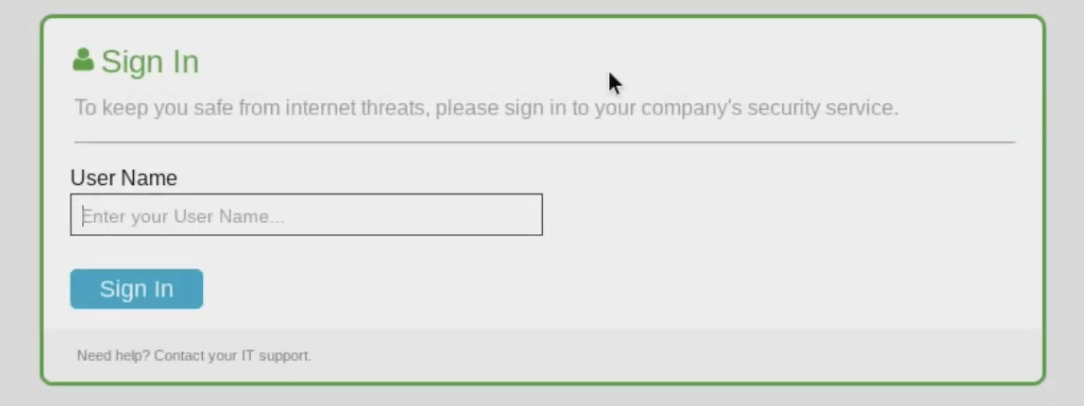
Common Issue: Zscaler Login:
Upon signing into your Chromebook, you may see a screen prompting for Zscaler login information. Enter the student's full email address and hit Sign-In.
Common Issue: Device is Locked
Upon booting your Chromebook, you may see a screen that says, “Your device is locked”. This is due to a Chromebook inventory issue - there is no record of this Chromebook being assigned.
If you see this screen, please email [email protected] with your name and the value next to “SN:”. We will assign the device and unlock it.
Common Issue: Not Permitted to Use This Device
Upon signing into your Chromebook, you may see a screen that says, “You are not allowed to use this device. Please log off.” This indicates that the device has been incorrectly assigned in our inventory system.
If you see this screen, please email [email protected] with your name and the KASD number of your device. This is found on the lid of your device on a white sticker labeled “Kiski Area SD”. If this label fell off, there is a serial number on the bottom of the device (service tag). We will assign the device and add you to the permitted user list.